Organize with ease
Folders, search, accounts and notes keep everyday entries easy to find.
PassBy
A native iPhone password notebook. Keep accounts, passwords and notes together, encrypt them on your device and sync to private iCloud storage. Open it on a trusted computer, too.
Open PassBy on the web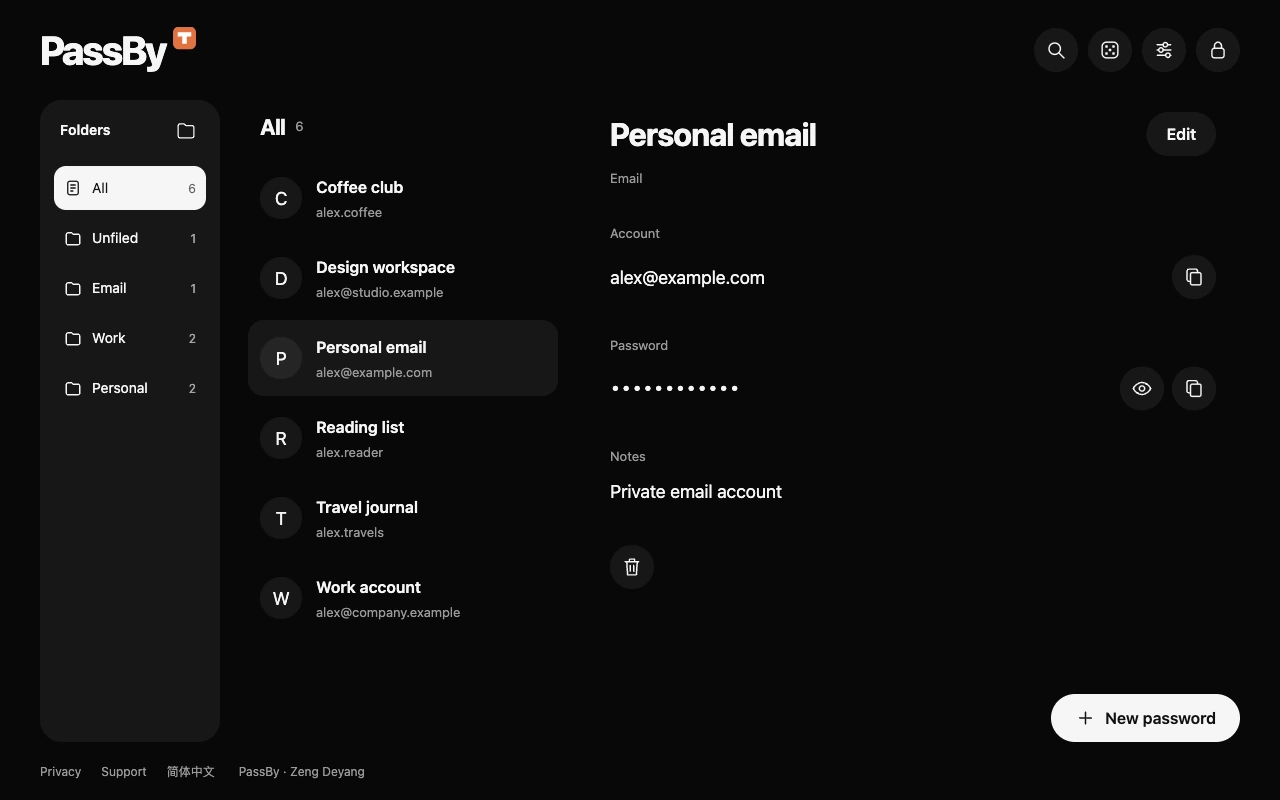
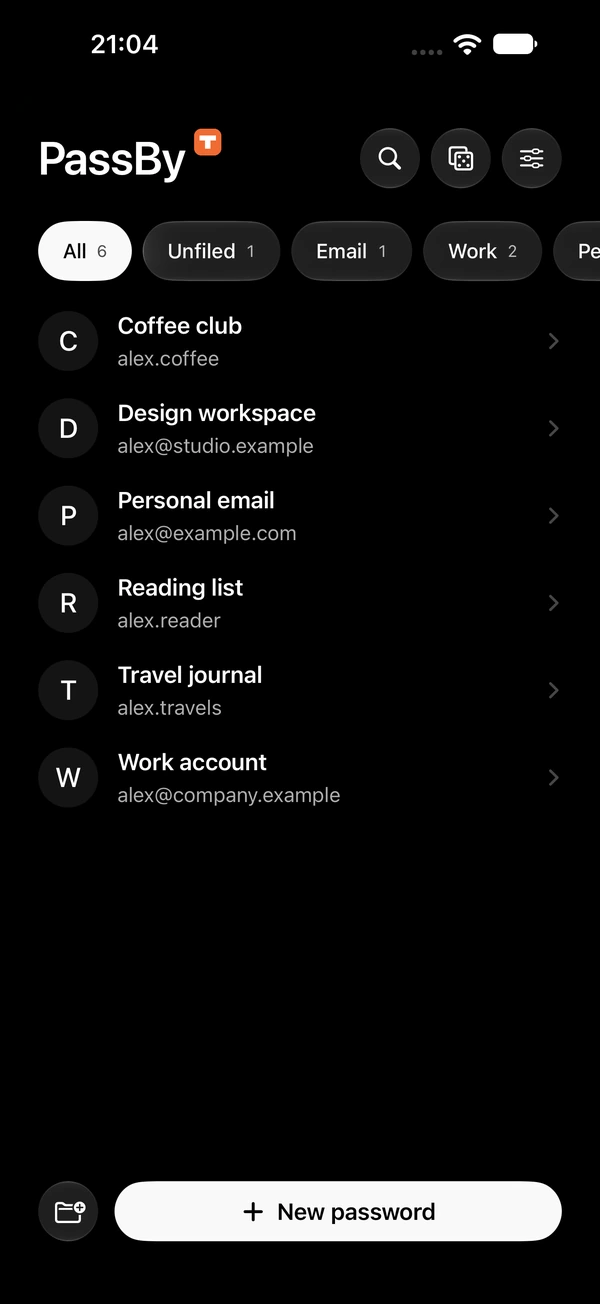
Folders, search, accounts and notes keep everyday entries easy to find.
The entire notebook is encrypted on device. Your private iCloud database stores only ciphertext.
Restore on a new device with your recovery key, or authorize your own trusted browser.
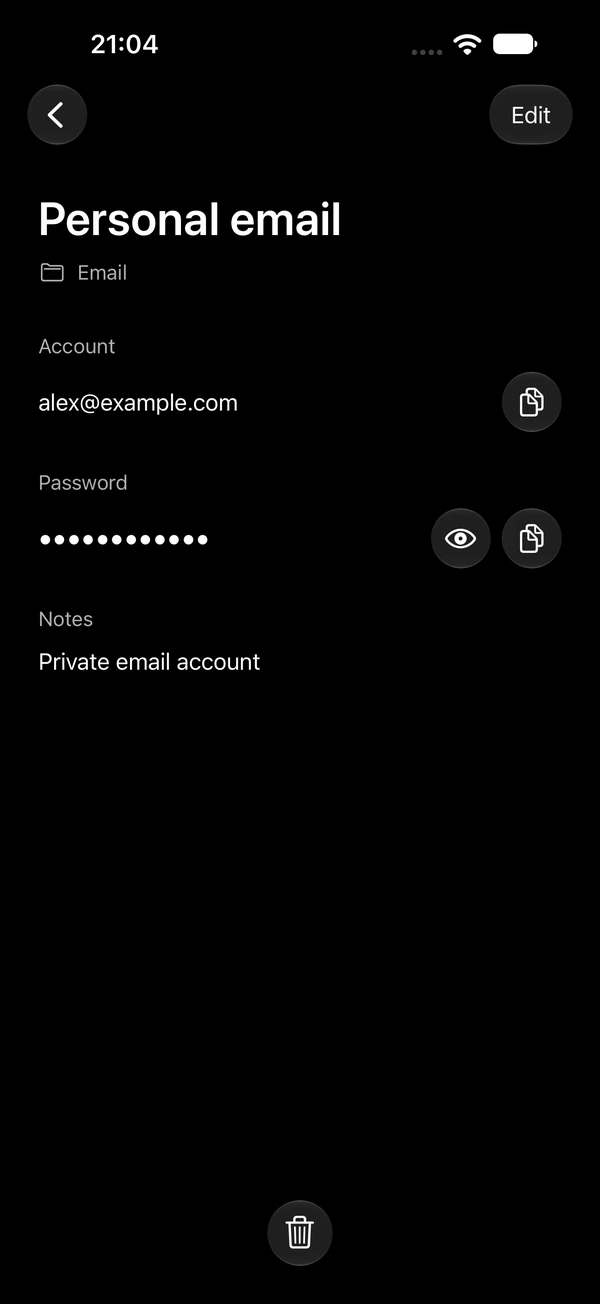
Titles, accounts, passwords and notes form a complete entry. Organize with folders and find entries with search. Passwords are hidden by default, with clear controls to reveal or copy.
Find entries by folder or keyword, with the details kept together.
Reveal passwords when needed. On iPhone, copied content expires through the system after 60 seconds.
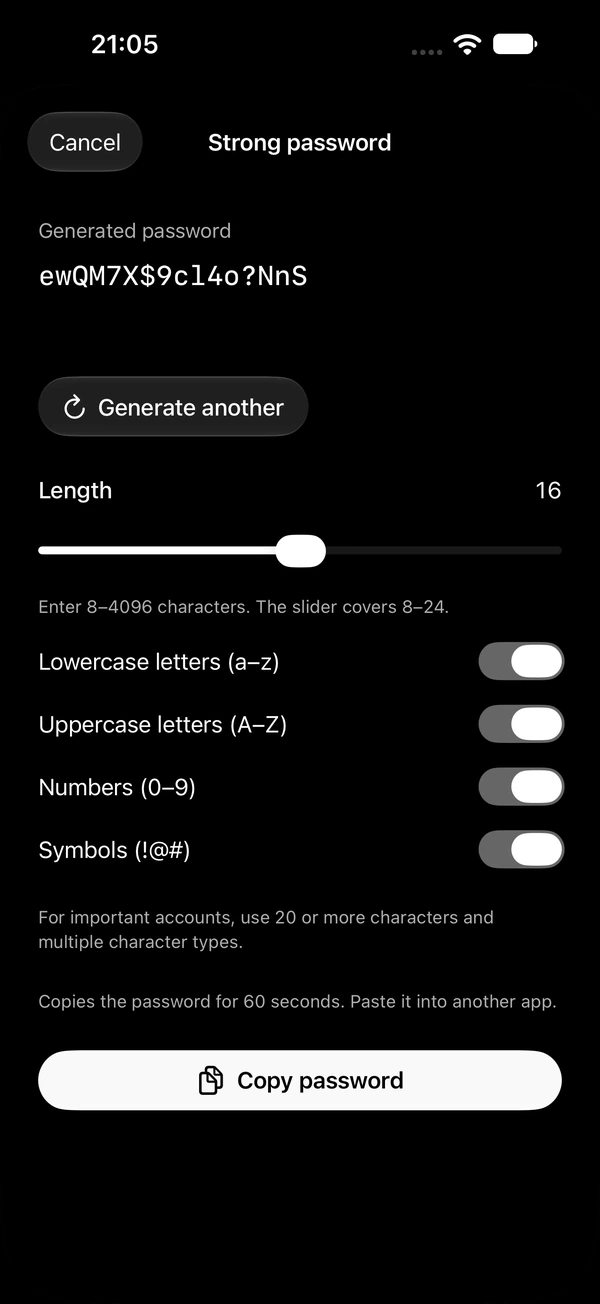
Generate a password by length and character type. Using it saves an encrypted local draft before filling and copying. Return to the app, unlock with Face ID and finish the entry.
Choose uppercase, lowercase, numbers and symbols, or enter a custom length.
The generated password stays in an encrypted local draft until you save the entry.
Leaving the foreground covers and locks the app. Return with Face ID. Changes save locally first and sync while unlocked in the foreground. Independent edits merge; password conflicts keep a separate copy.
A new device needs your iCloud ciphertext and recovery key. The developer cannot recover a lost key.
Tenon handles sign-in. Apple authorization, Face ID and decryption keys retain their separate responsibilities.
PassBy does not send your notebook to the Tenon account service. Keep the recovery key outside the app. Trusted browser authorization differs from iPhone Face ID protection. System autofill is not currently available.